4.10. Exports
MQC provides a flexible export mechanism that allows processed data generated within MQC to be written to external files for reuse, sharing, or further processing outside of MQC.
Exports implemented by export connectors, which define the configuration and functionallity. For the export connectors and their behavior see Export Connectors.
All configured exports for the current project are listed in the export dialog.
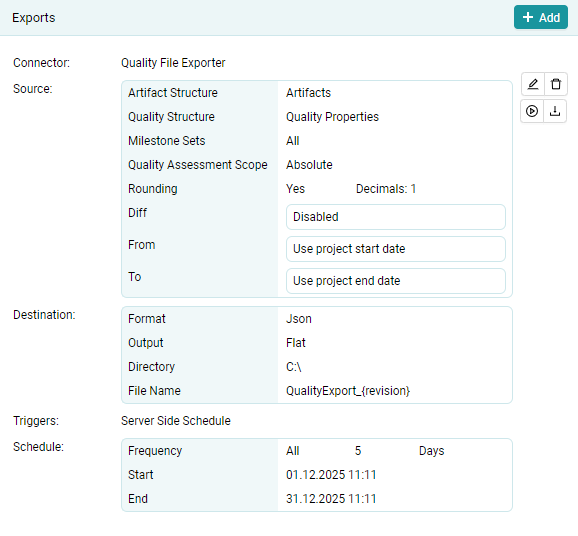
Figure 4.95 Exports showing an example export in MQC.
For each configured export, the following actions are available in the export configuration list:
Edit
Opens the export configuration dialog to modify the selected export.
Delete
Removes the export configuration from the project.
Execute
Triggers the export immediately, independent of its configured triggers or schedule.
The export is executed using the current configuration settings.
Download
Executes the export and downloads the complete result as a single file. The download can be stored in any selected data location.
This feature is only available, if the export connector supports it.
When creating a new project, exports cannot be added, triggered or downloaded until the project has been created and data has been imported.
If a project is created using a setup configuration that already contains export definitions, these exports are displayed and can be deleted before the project creation is finalized.
Each export definition defines how and when data is exported.
4.10.1. Export Configuration
By clicking Add, a new export configuration can be created.
Every configuration contains the following:
Connector
Select the export connector to export with. The export connector has to be enabled in the Adapters dialog to be selectable here. (see Adapters)
Triggers
Define when the export is executed. The following trigger types are available:
Client Side Refresh
Server Side Refresh (see Update Projects (and export scheduled))
Server Side Schedule (see Update Projects (and export scheduled))
When selecting a Server Side Schedule, additional options become available to configure:
Execution frequency
Start date
End date
Other configurations are specific to the selected Export Connector.
4.10.1.1. Quality File Exporter
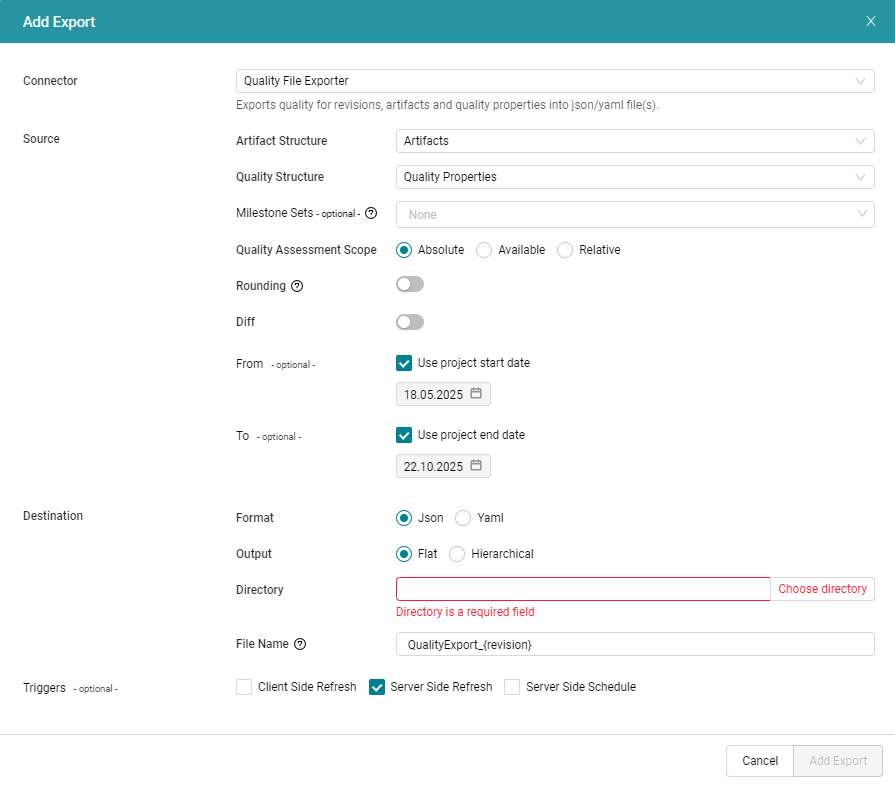
Figure 4.96 Export configuration of the Quality File Exporter
Revision Granularity
Select the revision granularity used for the export. (see Revision Granularity Selection)
Artifact Structure
Select the artifact structure that determines the artifact hierarchy used for the export. (see Artifact Structures)
Quality Structure
Select the quality structure that determines which quality characteristics or properties are included in the export. (see Quality Structures)
Milestone Sets
Optionally, restrict the export to specific milestone sets. If no milestone set is selected, all applicable milestones are considered. (see Milestone Structures)
Quality Assessment Scope
Choose the quality assessment scope to be exported.
Absolute
Available
Relative
The meaning of these scopes is defined in Quality Assessment Scope.
Rounding
Enable or disable rounding of exported quality values.
Diff
If enabled, diff values are included in the export in addition to absolute quality values. Diff values describe changes compared to the previous revision and correspond to the Diff View in MQC (see Diff View).
Export Range
Specify the time range for which data should be exported.
Output Format
Select the output file format:
JSON
YAML
Output Structure
Choose how the exported data is structured:
Flat
Hierarchical
Examples of both formats are shown in the export connector description.
Output Directory
Select the directory where the exported files will be written.
File Name Pattern
Define the output file name. Placeholders can be used to generate multiple files, for example one file per revision.
Example:
qualityExport_{revision}This configuration results in one output file per revision.