4.2. Managing Configurations
Project configuration is managed in the Configuration dialog.
The Configuration dialog can be opened by clicking the Configuration button in the left-hand side panel (see Figure 4.5).

Figure 4.5 Configuration button in the left-hand side panel.
The Configuration dialog is organized into separate tabs.

Figure 4.6 Configuration Dialog
You can make changes in one or more tabs before applying them to the project. Any changes made in one configuration tab are reflected immediately in the other tabs where they are applicable.
Pending changes are collected until the Update Project button is clicked.
The tooltip of the Update Project button lists the pending changes
(see Figure 4.7).
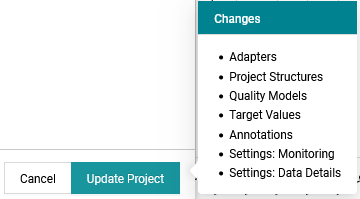
Figure 4.7 Update Project button tooltip showing pending changes
Some configurations are imported from configuration source files.
The following configuration source types are available:
Project Structure configuration source file
Contains configuration data like expected artifacts, project milestones, and one or multiple artifact structures (see Project Structure).
Quality Model configuration source file
Contains configuration data like expected measures, quality properties including the corresponding measurement functions and one or multiple quality model structures (see Quality Model).
Targets configuration source file
Contains target values for specific quality properties per artifact and milestone (see Target Values).
Annotations configuration source file
Contains annotations configuration (see Annotations).
Pages Layouts configuration source file
Contains the layout configuration of pages like the Quality page (see Pages Layouts).
Dashboard Pages configuration source file
Contains the configuration of dashboard pages (see Dashboards).
The format of configuration source files can be YAML, JSON or Excel.
4.2.1. Load / Reload
Configuration source files are managed in their corresponding tab.
Loaded configuration source files are listed there.

Figure 4.8 Dialog to manage one or multiple configuration source files, for example target value sources.
New configuration source files can be loaded by using the Add button.
The “Add Source” Dialog allows the loading of a configuration source file from your local file system, if the MQC desktop client is used. Loading from a network path, git or selecting from the sample projects is available both on the MQC desktop client and the web player.
For some configuration source types there are additional sources available, like the suggestions for quality models or the special adapters for custom adapters.
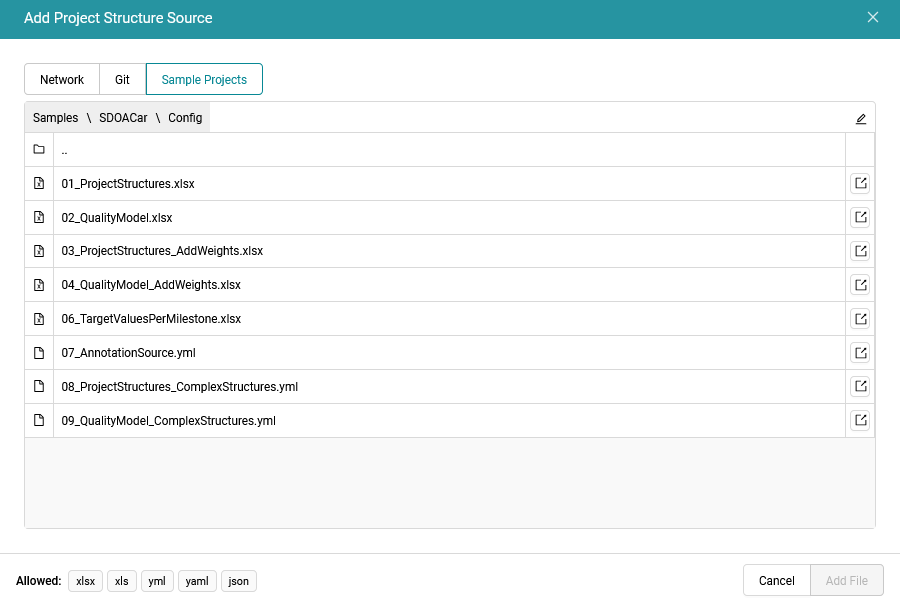
Figure 4.9 Dialog to add a configuration source file, for example a project structure source.
When using Git as the source, the repository url and the branch have to be entered.
Git repositories that have already been used for other configuration sources or for data locations are shown in a dropdown to be selected with one click.
The file tree of the selected branch is displayed. From there, you can select a configuration source file.
More information about git sources can be found in the Git chapter of Data Locations.

Figure 4.10 Dialog to add a configuration source file from git, for example a quality model source.
Each configuration source file may be independently:
Reloaded
If after the load the file was changed at its physical location, MQC notifies about that as shown in Figure 4.8.
Exported
For more details on exporting configuration source files see Export / Save.
Deleted
Besides, it is possible to do this for all loaded configuration source files
at once by using the buttons next to the Add button.
4.2.1.1. Validation
When adding a new configuration source file, the content is validated for consistency and, additionally, it is checked for conflicts against the already loaded source files. Potentially, a notification popup informs about the reason(s), why a load is not possible.
4.2.2. Export / Save
Individual configuration source files are exported by using the Export
button next to the configuration source file (see
Figure 4.8). This will export the file
in the format of the previous load.
To merge configurations from multiple loaded sources into a single source
file, the Export multiple button next to Add button at the top of the
dialog has to be used. This opens an additional
dialog as shown in
Figure 4.11.
It is possible to select the relevant source files to be combined.
Additionally, this dialog provides the option to explicitly choose the file type of the combined export (YAML, JSON or Excel).

Figure 4.11 Export dialog for exporting multiple configuration sources into one file with the option to define the file format.
For configuration data that can be changed directly in MQC, a Save/Save as
functionality is available (see Figure 4.12).

Figure 4.12 Configuration changes inside the tool can be saved to configuration source files.
This applies to:
annotation sources
layout sources
dashboard sources
Any modification done by adding, deleting or refreshing configuration
source files, finally, has to be applied by using the Update Project
button of Configuration dialog.